IdeaPad s405

As mentioned previously, I am looking for a new laptop. The closest to ideal new laptop will likely be a Dell XPS 14 ultrabook when the series is refreshed with Haswell core processors. However, those are not available yet. Before heading off to WordCamp Chicago this year, I decided I would not be lugging the Vostro 1400 with me. Since Lenovo was running some pretty good outlet deals, I picked up the ideapad s405 for pretty cheap. Yes, this laptop only meets the first two requirements I set forth in “What I Look for in a Laptop”.

The Hardware

The s405 is an “entry level”/”value” segment ultrabook class laptop. However, it can’t qualify as an ultrabook as it has an AMD APU rather than Intel CPU.

  • AMD A6-4455M APU (2.1GHz, 2.6GHz turbo) 17W with HD 7500G
  • 8GiB 1.35v DDR3-1333 single channel (upgrade, more on this later)
  • 256GB Samsung 840 Pro (upgrade)
  • 802.11bgn (Ralink RT3090 based)
  • 32 Wh Li-ion battery (up to 5hrs according to Lenovo)
  • 14 inch glossy display (1366 x 768)
  • AMD Radeon HD 7500G Graphics (256 shaders, 327MHz, 424MHz turbo)

The build quality is adequate. It’s not build like a tank, unlike the Vostro 1400, but then again it is much lighter and thinner. It does flex a little when opening the lid, and will flex a little if held from either front corner.

Like a few other ultrabooks, rather than facing up at you, the speakers face down towards the surface the s405 is sitting on. This works quite well in delivering adequate sound for such a small device. This scheme delivers at least 10X better sound than that from the Vostro 1400.

Performance wise, while the A6-4455M is slower than the C2D x9000 in the Vostro 1400, it is fast enough for day to day tasks. It has no problem streaming 1080p H.264 video over WiFi (something that can’t be said about some Pentium mobile chips from only two years ago). It took about a weekend to get Funtoo up and running (with KDE4 and fglrx working), which is about right when dealing with unfamiliar hardware.

Caveat Emptor

Unlike the Vostro 1400, the s405 does not have individual compartments for accessing and upgrading components. Instead the bottom of the laptop must be removed (there are screws hidden under the rubber feet), which while not difficult is a bit of a pain when diagnosing hardware issues.

While the memory is upgradeable, not all memory is compatible. Worst of all, memory may pass several rounds of checks on memtest86 and Microsoft’s memory tester and still cause issues in the OS. Case in point, just before heading off to WordCamp Chicago I had installed a 8GiB stick of 1.35v DDR3-1600 CL11 memory (Patriot branded stick with Micron chips). While in Chicago the laptop would BSoD anywhere between 5 and 55 minutes of use (I ran Windows 8.1 while down there which isn’t a bad OS).

After returning from Chicago, I narrowed down the issue to being with the memory (replacing it with the stock memory resolved the BSoD issues). While 4GiB is probably enough memory for this laptop, I wanted more for running VMs (with Vagrant) and using for RAMdisks when compiling. Crucial happens to have 8GiB sticks of 1.35v DDR3-1333 CL9 memory that they guarantee compatibility with the s405. Thus far, it appears that the guaranteed compatible memory from Crucial is in fact compatible with the s405 (have not had any issues with it).

The s405 only supports 7mm high drives. The included 500GB WD Scorpio Blue is very slow, so it was replaced with the only 7mm drive I had on hand (a Samsung 840 pro that was supposed to go into my workstation).

Finally, for those who do not know, Lenovo (like IBM before them and HP) have device white-lists for WiFi cards. So upgrading the card in this laptop may not be easily done (will update when I have an extra mini-pcie WiFi card on hand to test).

Other Thoughts

Battery life, while more is better, and this laptop could use more, is not too bad. While waiting for my delayed flight back from WordCamp Chicago, I was able to run the s405 for 3 hours while playing music off of a SD card and writing some code and documents. This only brought the battery down to 50% (according to Windows 8.1), while I don’t think 6 hours will be the typical battery life, it should be possible.

The trackpad is nice and large, but frankly I do not like trackpads. Within Windows the Synaptics drivers do a good job at palm detection and prevent the cursor from jumping to random areas when typing. In Linux, the Synaptics drivers are pretty good, but require calibration/configuration tweaking to get the palm detection working properly.

-John Havlik

[end of transmission, stay tuned]

Breadcrumb NavXT 4.4.0

Holy API improvements Batman! As with 4.3.0, this release contains several smaller improvements rather than a single, or handful of ‘block buster’ new features. The largest set of these improvements is the addition, and improvement of several filters within Breadcrumb NavXT.

Of the new filters, bcn_template_tags has one of the larger impacts. It allows the addition of custom breadcrumb template tags. Other new filters include bcn_allowed_html, bcn_breadcrumb_template, and bcn_breadcrumb_url. For more information on these filters, please checkout the Breadcrumb NavXT Filters section of the documentation.

Additionally, the set of valid HTML for breadcrumb templates was revised and expanded. The basic set should now include a, img, span, h1, and h2 HTML tags. Added valid properties include:

  • aria-hidden
  • data-icon
  • itemprop
  • itemscope
  • itemtype

With the bcn_allowed_html filter the list of valid HTML tags and associated properties can be expanded upon without modification of the plugin.

The Translation Team:

[glot-translators=breadcrumb-navxt]

As always, you can grab the latest version of Breadcrumb NavXT from the Breadcrumb NavXT page. If you experience any issues with this version of Breadcrumb NavXT, please leave a comment on this post detailing the issue.

-John Havlik

[end of transmission, stay tuned]
How to Add li and Other Tags to Breadcrumb Templates

Since Breadcrumb NavXT 4.3.0, all settings that can contain HTML are passed through wp_kses(). With this change, only a basic set of acceptable tags and properties within tags were allowed. Naturally, this restricted users more than they were used to. The restriction wasn’t the biggest problem, the lack of a filter to allow users to add their own tags in to the allowed HTML tag list. However, with Breadcrumb NavXT 4.4, a new filter bcn_allowed_html has been introduced to fix this issue.

The default set of allowed HTML tags in Breadcrumb NavXT 4.4 consists of: <a>, <img>, <span>, <h1>, and <h2>. For the purposes of this guide, let’s assume you don’t want to use the built in bcn_display_list() function to output breadcrumbs wrapped in <li> tags. The reason you would want to do this is if you need additional properties within the tag (Breadcrumb NavXT will by default add a class but that’s it).

In Breadcrumb NavXT 4.4, adding a tag to the allowed HTML list for Breadcrumb NavXT is really easy. Just create a function with one input argument ($allowed_html in this example). Within that function append, using the HTML tag name as the array entry key, assign an array of properties that tag is allowed to have, using the property name as the array entry key and a value of true. Then add your filter function to the ‘bcn_allowed_html’ filter hook. Below is an example of this for the <li> tag with a selection of properties.

function my_bcn_allowed_html($allowed_html)
{
	$allowed_html['li'] = array(
		'title' => true,
		'class' => true,
		'id' => true,
		'dir' => true,
		'align' => true,
		'lang' => true,
		'xml:lang' => true,
		'aria-hidden' => true,
		'data-icon' => true,
		'itemref' => true,
		'itemid' => true,
		'itemprop' => true,
		'itemscope' => true,
		'itemtype' => true
	);
	return $allowed_html;
}
add_filter('bcn_allowed_html', 'my_bcn_allowed_html');

To get started quickly, just copy and paste the above code into a site specific plugin and start playing.

-John Havlik

[end of transmission, stay tuned]
Playing with the Olympus 60mm f/2.8 Macro

Even since purchasing my Panasonic GF5 last winter, I’ve wanted a macro lens. Those who are familiar with the micro four thirds system know that there are only two macro lenses for it. The quite expensive Panasonic/Leica 45mm f/2.8, and the newer and slightly less expensive Olympus 60mm f/2.8. Currently, Olympus has some decently sized instant rebates on a large selection of lenses, including the 60mm f/2.8 macro, so I picked one up.

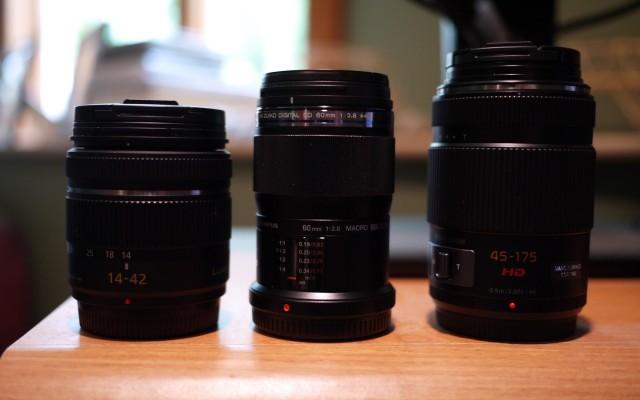
Above is a side by side comparison of the Panasonic Lumix 14-42mm, Olympus 60mm macro, and the Panasonic Lumix 45-175mm. In comparison to all the Panasonic lenses I have, the Olympus is quite narrow. This makes it look much longer in the product photos than it really is.

Below is a set of sample picture I took when playing around with the Olympus 60mm on my GF5. A few things to note, in several instances the GF5 had trouble getting the lens to focus (lots of back and forth focusing). I had better luck using manual focus mode. Additionally, the depth of field of the Olympus 60mm at f/2.8 isn’t very great. I ended up going into aperture priority mode to stop down to f/5 to get a reasonable DOF.

-John Havlik

[end of transmission, stay tuned]

WordPress 10 Year Anniversary: Minneapolis Party

Today marks WordPress’ 10th year of existence. To celebrate, #wp10 parties are being held all over the world. In the Minneapolis/St. Paul area we met at Minnehaha Park. Unfortunately, the weather didn’t cooperate for the bike-ride/run that we planned to do before grilling. So, we stuck to socializing in the pavilion, grilling bratwurst (some hotdogs, chicken and a lonely hamburger made it to the grill as well), and eating birthday cake.

-John Havlik

[end of transmission, stay tuned]